A slow WooCommerce store does not just annoy visitors. It loses sales. Shoppers leave when product pages take too long to load, abandon carts when checkout lags, and Google pushes slow pages down in search results through Core Web Vitals. The good news is that most WooCommerce stores are slow for the same handful of reasons, and almost all of them can be fixed without changing your design.
After optimizing 800+ WordPress sites, many of them WooCommerce stores, these are the 12 fixes we use most often, roughly in order of impact.
How to tell if your store is actually slow
Test your homepage, a category page, a product page and the cart in Google PageSpeed Insights. Look at the mobile results first, because that is what Google uses for ranking. Pay attention to three numbers: LCP (how fast the main content appears), INP (how fast the page reacts to clicks) and CLS (how much the layout jumps). Google considers LCP under 2.5 seconds, INP under 200 milliseconds and CLS under 0.1 to be good.
If your mobile score is under 50 or your LCP is above 4 seconds, your store is losing customers right now.
1. Move to hosting that can handle WooCommerce
WooCommerce makes many more database queries than a normal WordPress site, and cart, checkout and account pages cannot be fully cached. Cheap shared hosting often struggles with this. Check your Time to First Byte (TTFB) in PageSpeed Insights. If it is regularly above 600 milliseconds, the server is the bottleneck and no plugin will fully fix it. Look for hosting with current PHP versions, enough PHP workers, server-level caching and an object cache such as Redis.
2. Use full page caching, with the right exclusions
Page caching serves a ready-made HTML copy of your pages instead of building them on every visit. For WooCommerce, the cache must exclude the cart, checkout and My Account pages, and must not cache pages for logged-in users or visitors with items in their cart. Good caching plugins such as LiteSpeed Cache, WP Rocket or FlyingPress handle these exclusions automatically, but it is worth checking that they are on.
3. Add an object cache
An object cache (Redis or Memcached) stores the results of database queries in memory. Because WooCommerce pages that cannot be page cached still run many queries, an object cache can noticeably speed up cart, checkout, search and the admin area. Many good hosts include Redis; you only need to enable it.
4. Stop cart fragments from slowing down every page
WooCommerce uses an AJAX request called wc-ajax=get_refreshed_fragments to keep the mini cart updated. On many stores it runs on every page, for every visitor, and it bypasses the page cache. On slow hosting this single request can add a second or more. Disable it on pages that do not need it, or load it only after a product has been added to the cart. Most modern caching plugins have an option for this.
5. Optimize product images properly
Product images are usually the largest files on a store. Serve them in WebP or AVIF, resize them to the size they are actually displayed at, and lazy load images below the fold. Do not lazy load the main product image or the hero banner, because that delays LCP. Instead, preload that one image so the browser fetches it first.
6. Remove unused CSS and JavaScript
Themes, page builders and plugins often load their CSS and JavaScript on every page, even where they are not used. Removing unused CSS and delaying non-critical JavaScript until user interaction is one of the biggest wins for mobile scores. Test carefully afterwards, especially the add to cart button, variation selectors and checkout.
7. Delay third-party scripts
Chat widgets, Facebook and TikTok pixels, Google Tag Manager, review widgets and heatmaps add a lot of JavaScript. Most of them do not need to load in the first second. Delaying them until the visitor scrolls or interacts usually improves Total Blocking Time and INP dramatically, while tracking still works.
8. Audit your plugins
It is not the number of plugins that matters but what they do. One badly coded plugin can slow down the whole store. Use a tool like Query Monitor to find plugins that run slow database queries or load assets everywhere, then replace or configure them. Deactivate anything you no longer use.
9. Clean up the database
Over time WooCommerce stores collect expired transients, old sessions, post revisions, orphaned metadata and huge autoloaded options. Cleaning these up and keeping autoloaded data small makes every uncached request faster. Always take a full backup before you touch the database.
10. Speed up search and filters
Large catalogs with layered filters can be very slow, because each filter combination creates a new uncached query. Use a well-built filter plugin, index your product attributes, and avoid filter plugins that load all products on every request.
11. Use a CDN
A content delivery network serves your images, CSS and JavaScript from servers close to your visitors. If you sell internationally, a CDN can cut load times significantly. Many CDNs can also cache full HTML pages at the edge, which helps even more.
12. Fix layout shift on product and category pages
Images without width and height, late-loading fonts, cookie banners and sale badges that appear after load all cause layout shift. Set image dimensions, preload your main font, and reserve space for banners. A low CLS makes the store feel stable and trustworthy.
Real example: an online food store from 45 to 99
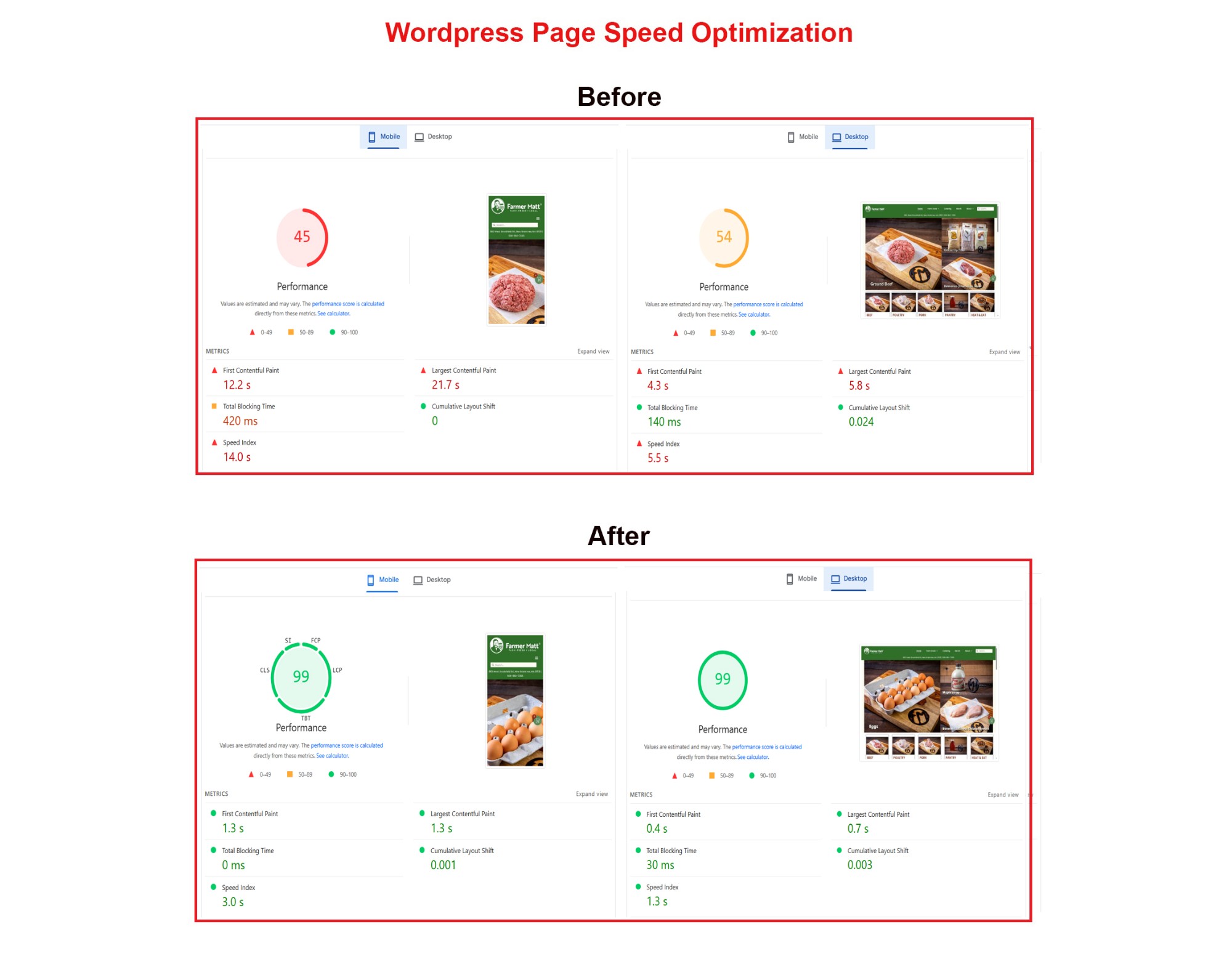
This online food store had large product photos, heavy scripts and slow server response. After optimization, mobile PageSpeed went from 45 to 99 and desktop from 54 to 99. Mobile LCP dropped from 21.7 seconds to 1.3 seconds, and the design and every product image stayed the same.
Want us to fix it for you?
Every store is different, so the right fixes depend on your hosting, theme and plugins. Our WordPress speed optimization service covers all of the above, with a full backup first and a fixed price agreed upfront. Not sure where to start? Request a free speed audit and we will tell you exactly what is slowing your store down.